
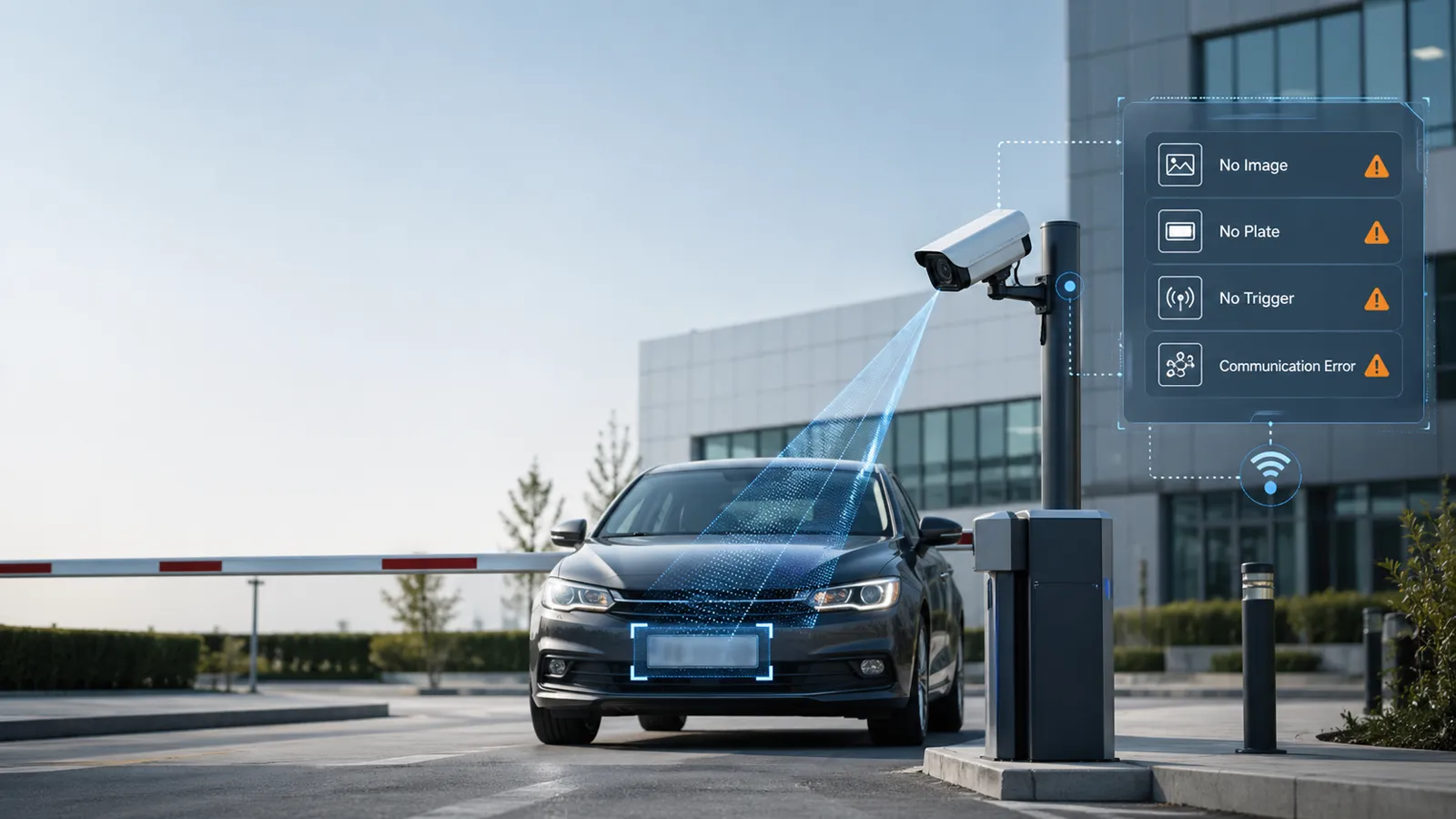
Most LPR camera faults can be diagnosed in four steps: check whether the camera has image output, confirm whether the license plate is clearly visible, verify whether the trigger signal is working, and test communication between the LPR host and parking software. If the system shows no image, the problem is usually related to power, cables, lens connection, video input, or camera hardware. If the system displays “No License Plate,” the issue is more often caused by poor image quality, camera angle, dirty lens, incorrect recognition area, lighting, or wrong region settings.
For parking lots, highway entrances, toll lanes, factories, residential communities, and commercial access-control points, fast troubleshooting is important because one failed LPR lane can cause vehicle queues, manual operation, and customer complaints. Use the guide below to locate the fault before replacing hardware.
Quick Fault Diagnosis Table for LPR Camera Problems
| Fault Symptom | Most Likely Cause | First Check | Recommended Action |
|---|---|---|---|
| No image output | Camera power, lens cable, video cable, network cable, or control board issue | Check camera power and video/network connection | Test the camera output, reconnect cables, and confirm the correct input interface |
| Displays “No License Plate” | Plate is unclear, camera moved, wrong angle, dirty lens, poor lighting, or incorrect ROI | Check whether the plate is readable in the image | Clean lens, adjust focus, reset camera angle, and redraw recognition area |
| Vehicle passes but software has no response | Loop coil, radar, detector, or trigger signal failure | Check detector indicator and trigger wiring | Test trigger output and confirm the LPR host receives the signal |
| Software keeps showing “Acquiring license plate” | Communication fault between LPR host, industrial computer, or parking software | Check power, IP address, network, and lane configuration | Restart device, check network, verify software parameters |
| Low recognition rate | Exposure, focus, speed, plate angle, region setting, or lighting problem | Check captured plate image quality | Adjust camera settings and test with real vehicles |
| Wrong plate or wrong lane captured | Recognition area too large or trigger line placed incorrectly | Check ROI and trigger line position | Limit recognition area to the correct lane |
This troubleshooting logic is consistent with common LPR/ANPR setup guidance: recognition depends on camera position, recognition area, trigger configuration, plate size in the image, lighting, vehicle speed, and license plate condition.
Fault 1 — Why Is There No Image Output from the LPR Camera?
When an LPR system has no image output, do not adjust recognition parameters first. Recognition cannot work until the system receives a stable image.
Start with the basic signal path:
Camera → lens/cable → control board or network switch → LPR host → software display.
Check Whether the Camera Has Power
Confirm that the camera is powered on. Check the power indicator, PoE switch, power adapter, terminal connection, and whether the camera can be found on the network. For an IP-based LPR camera, try accessing the camera through its web interface or management software. For an analog-video-based system, confirm whether the video signal reaches the recognizer or display device.
If the camera has no power, check the power supply, fuse, terminal block, PoE budget, or power cable before checking software settings.
Check the Lens Drive Cable and Camera Connection
Some high-definition LPR cameras use a motorized lens for zoom and focus control. If the lens drive cable is loose, broken, or incorrectly connected, the camera may fail to focus correctly or may not provide the expected image.
Check whether:
- The lens cable is firmly connected.
- The connector pins are not bent or oxidized.
- The lens responds to zoom and focus commands.
- The lens is not blocked, fogged, or physically damaged.
Check the Cable Between the Camera and Control Board
For wired systems, cable problems are common. Inspect the video cable, network cable, power cable, and trigger cable. A cable may look normal from the outside but still fail because of internal breakage, water ingress, loose connectors, or poor crimping.
For outdoor parking entrances, pay special attention to waterproofing. Rainwater entering a connector can cause intermittent image loss, communication failure, or unstable recognition.
Check Whether the Recognizer Receives the Video Signal
If the camera itself has an image but the LPR software shows no image, check the recognizer or LPR host input.
For analog systems, confirm that the video cable is connected to the correct analog video input interface. For IP systems, confirm that the camera IP address, port, username, password, and video stream type are correct.
If there is a separate surveillance camera and LPR camera in the same lane, make sure the LPR host is connected to the license plate camera, not only the overview camera.
When Should You Replace the Camera or Cable?
Do not replace the camera immediately. First test with a known-good power supply, known-good cable, and known-good input port. If the camera still has no image after power, cable, interface, and configuration checks, the camera module or internal board may be damaged and should be inspected by the manufacturer or technical support team.
Fault 2 — Why Does the System Display “No License Plate”?
When the system displays “No License Plate,” it usually means the software received an image but could not identify a valid plate. This is different from “no image output.”
The most important question is simple: Can the human eye clearly read the license plate in the captured image? If not, the algorithm will also struggle.
Confirm Whether the License Plate Is Clear in the Image
Open the live view or captured image and check:
- Is the plate complete?
- Is it too small in the image?
- Is it blurred because of vehicle movement?
- Is it overexposed by sunlight, headlights, or fill light?
- Is it underexposed at night?
- Is the plate blocked by the barrier arm, bumper, tow hook, dirt, or frame?
- Is the vehicle too close or too far from the camera?
Amcrest’s LPR troubleshooting guidance recommends adjusting focal length when the plate is unclear and adjusting illumination when the plate is overexposed.
Check Whether the Camera Position Has Moved
A camera may shift because of vibration, collision, loose brackets, gate maintenance, or strong wind. Even a small change in angle can move the plate out of the recognition area.
Check whether the camera still points at the correct capture position. The best capture point is usually where the vehicle slows down or stops naturally, such as before the barrier gate, ticket machine, payment machine, or lane checkpoint.
TP-Link’s LPR setup guidance recommends parking a vehicle at the intended triggering position and adjusting the camera so the plate appears in the proper image area before configuring recognition settings.
Check Focus, Zoom, Exposure, and Fill Light
A high-definition camera cannot recognize a plate if the image is blurred, too bright, or too dark.
Check these settings:
| Image Problem | Possible Cause | Adjustment |
|---|---|---|
| Plate is blurred | Focus not correct, vehicle speed too high, shutter too slow | Refocus lens, increase shutter speed, adjust capture position |
| Plate is too small | Camera too far or zoom too wide | Increase zoom or move camera closer |
| Plate is overexposed | Fill light too strong, headlights reflect into camera | Reduce illumination intensity, adjust angle, tune exposure |
| Plate is too dark | Insufficient night lighting | Enable fill light or add external lighting |
| Plate is readable by eye but not recognized | Wrong ROI, wrong region setting, wrong trigger line | Reconfigure recognition area and LPR parameters |
TP-Link also notes that WDR, brightness, fill light, camera angle, and lighting conditions can affect plate clarity, especially in high-contrast or nighttime scenes.
Check the Recognition Area or ROI
The recognition area, also called ROI, should cover the lane area where the license plate actually appears. It should not cover the entire camera image unless necessary.
If the ROI is too large, the system may capture plates from another lane or background vehicles. If the ROI is too small or misplaced, the plate may pass outside the detection zone.
Digital Watchdog recommends configuring the ROI to help detect license plate information and keeping it only as large as necessary instead of covering the full field of view.
Check Whether the Correct Country or Region Is Selected
Different countries and regions use different license plate sizes, colors, fonts, layouts, and character combinations. If the wrong country or region is selected, recognition accuracy may drop.
Digital Watchdog’s ANPR setup guidance also highlights the need to select the correct region or country for the camera installation. Milesight’s LPR settings similarly include country/region selection and detection region configuration.
Fault 3 — Why Is There No Response After the Vehicle Passes the Trigger Coil?
If a vehicle passes through the capture coil or trigger area and the software shows no response, the problem is usually not image recognition. It is usually a trigger problem.
The LPR host or parking software may not have received the signal telling it to capture the plate.
Confirm the Trigger Method
Different projects use different trigger methods:
- Loop coil trigger
- Radar trigger
- Video trigger line
- Infrared sensor
- Barrier-gate signal
- External alarm input
- Manual software trigger
TP-Link’s LPR configuration guidance explains that recognition may be activated by video trigger when a vehicle crosses a trigger line, or by external input from a physical sensor such as a loop detector or barrier-gate signal.
Check Whether the Trigger Detector Sends a Signal
For loop coil systems, check the loop detector first. Look at the detector indicator light and confirm whether it changes when a vehicle enters the coil area.
Check:
- Whether the loop coil is damaged.
- Whether the loop detector is powered.
- Whether the detector sensitivity is suitable.
- Whether the relay output works.
- Whether the trigger wire is connected to the correct input terminal.
- Whether the vehicle actually passes through the coil area.
If the detector does not respond, troubleshoot the coil and detector before checking the LPR camera.
Check Whether the LPR Host Receives the Trigger Signal
A detector can work normally, but the LPR host may still fail to receive the signal because of wrong wiring, wrong input type, wrong software setting, or damaged I/O terminal.
Confirm whether the trigger signal reaches the LPR host. If the system has an input test page or diagnostic log, use it to check whether the trigger event appears.
Check Whether the Trigger Position Matches the Camera View
A common installation problem is timing mismatch. The vehicle triggers the coil too early or too late, so the camera captures before the plate enters the best recognition area or after the vehicle has already passed.
Adjust the trigger position so the license plate is visible, complete, and at the correct angle when the trigger occurs. TP-Link recommends placing the trigger line where the plate angle is appropriate and not affected by other vehicles entering the field of view.
Fault 4 — Why Does the Software Keep Showing “Acquiring License Plate”?
If the software stays on “Acquiring license plate,” the system may be waiting for data from the LPR host. This often points to communication failure between the industrial control computer, LPR device, parking software, or lane network.
Check Whether the LPR Device Is Powered On
Confirm that the LPR camera or recognition host is powered, online, and operating normally. Check the device indicator, web interface, ping response, or management software status.
Restart the device only after recording the current fault status. If the problem repeats after restart, continue checking the network and configuration instead of relying on repeated rebooting.
Check Whether the Lane Network Is Normal
Network faults can cause the software to wait indefinitely for license plate data.
Check:
- Network cable connection
- Switch power and port status
- Camera IP address
- IP conflict
- Gateway and subnet settings
- Firewall or VLAN restrictions
- Packet loss or unstable communication
- Whether the LPR host and parking software are in the same network segment
For systems that send LPR data to third-party software, confirm the communication protocol, IP address, port, and message format. Milesight’s LPR settings, for example, include message posting options for third-party devices or software through methods such as TCP or HTTP.
Check Communication Between the Industrial Computer and LPR Host
If the camera captures normally but the parking software does not receive the result, the issue may be between the recognition host and the industrial control computer.
Check whether:
- The LPR service is running.
- The parking software is connected to the correct device.
- The device ID matches the lane configuration.
- The communication port is open.
- The camera or host password was changed.
- The software license or recognition module is enabled.
- Logs show timeout, authentication failure, or device offline errors.
Check Lane Configuration Files and Device Parameters
Lane configuration errors can make a working device appear faulty.
Confirm:
- Entrance or exit lane direction
- Lane number
- Camera IP address
- Recognition host IP
- Device ID
- Trigger mode
- Country or region setting
- Recognition area
- Barrier control linkage
- Communication port
If the lane configuration file was recently modified, compare it with a known-working lane.
How to Improve LPR Recognition Accuracy After Repair
After the system is restored, test recognition quality before returning the lane to normal operation.
Adjust Camera Angle and Installation Height
Camera placement directly affects recognition performance. Eagle Eye Networks notes that camera placement plays a key role in LPR/ANPR accuracy.
A good installation should allow the plate to appear:
- Complete
- Sharp
- Large enough
- Not too tilted
- Not blocked by the barrier arm
- Inside the recognition area
- At a stable position when the vehicle slows down
Digital Watchdog’s guidance also recommends reducing plate offset and matching camera angle to the target vehicle path for better ANPR performance.
Keep the Plate in the Best Capture Area
The best capture area is not always the center of the full image. It is the position where the license plate is most readable.
For barrier-gate parking systems, this is often near the stopping line before the barrier. For toll lanes or highway entrances, the capture point must match the expected vehicle speed and lane direction.
Optimize Lighting for Day and Night
Day and night conditions are very different. A camera that works well at noon may fail at night because of headlights, reflective plates, rain, or insufficient illumination.
Check both daytime and nighttime images. Adjust exposure, shutter, gain, WDR, fill light, or external lighting as needed. Avoid setting fill light too strong because overexposure can make characters disappear.
Set the Correct Recognition Region, Trigger Line, and Lane Direction
A correct ROI tells the system where to look. A correct trigger line tells it when to capture. A correct lane direction helps avoid capturing the wrong vehicle.
If vehicles enter from different angles or multiple lanes are visible in one image, narrow the recognition area and test again with real traffic.
Test with Real Vehicles
After adjustment, test with different vehicle types:
- Sedans
- SUVs
- Trucks
- Motorcycles, if supported
- Vehicles with front and rear plates
- Dirty or reflective plates
- Fast and slow vehicles
- Daytime and nighttime vehicles
TP-Link recommends verifying the capture result by driving a vehicle through the entrance or exit after adjusting LPR settings.
LPR Camera Maintenance Checklist
| Maintenance Item | Recommended Check | Why It Matters | Suggested Frequency |
|---|---|---|---|
| Lens surface | Clean dust, rain marks, oil, insects, and fog | Prevents blurry plate images | Weekly or after rain/dust |
| Camera bracket | Confirm no movement or vibration | Keeps camera angle stable | Monthly |
| Power cable | Check terminal, adapter, and PoE supply | Prevents no image or reboot issues | Monthly |
| Network/video cable | Check connector, waterproofing, and signal stability | Prevents image loss and communication faults | Monthly |
| Fill light / IR light | Check brightness and reflection | Improves night recognition | Monthly |
| Loop coil / radar / detector | Test trigger signal | Prevents no-response faults | Monthly |
| Recognition area / ROI | Confirm plate passes through correct area | Prevents missed or wrong-lane captures | After any camera adjustment |
| Software configuration | Check lane, region, trigger mode, and device ID | Prevents communication and recognition errors | After software changes |
| Capture log | Review failed captures and repeated errors | Helps find recurring problems | Weekly for busy lanes |
When Should You Replace Parts Instead of Adjusting Settings?
Replace the Cable If the Signal Is Intermittent
If image or communication failure appears and disappears randomly, the cable may be damaged. Outdoor cables can fail because of water ingress, aging, rodent damage, poor grounding, or loose connectors.
Use a known-good cable for testing. If the problem disappears, replace the old cable and waterproof the connector.
Replace the Camera If Image Output Fails After Basic Tests
Replace or repair the camera only after confirming:
- Power supply is normal.
- Cable is normal.
- Network or video input is normal.
- The device cannot be accessed.
- The camera fails on a known-good port.
- The fault follows the camera when moved to another lane.
Replace the Loop Detector If Trigger Output Is Unstable
If the loop coil and wiring are normal but the detector output is unstable, the detector may need replacement. Signs include no indicator change, false triggers, delayed triggers, or random trigger output.
Contact Technical Support If Communication Fails Repeatedly
If the system repeatedly shows “Acquiring license plate,” device offline, communication timeout, or no upload result, contact technical support. Provide screenshots, wiring photos, IP settings, lane configuration, device model, firmware/software version, and sample captured images.
Conclusion: Diagnose LPR Faults in the Right Order
When an LPR camera fails, diagnose the system in this order: image output, plate visibility, trigger signal, communication status, and software configuration. Do not replace hardware before checking power, cables, ROI, trigger mode, region settings, and network parameters. Most “No License Plate” problems are caused by image quality or installation settings, while “No Trigger” and “Acquiring license plate” problems are more often related to detector signals, wiring, network, or software communication.
For parking lot entrances, toll lanes, factories, communities, commercial buildings, and other vehicle access-control projects, Shunjie provides high-definition LPR parking solutions with OEM customization and technical support for distributors, integrators, and project partners.
FAQ
1. Why does my LPR camera have no image?
The most common causes are power failure, loose cable connection, wrong video or network input, lens cable problems, IP address conflict, or camera hardware damage. Check power and cables first before changing recognition settings.
2. Why does the system display “No License Plate”?
This usually means the system received an image but could not identify a valid plate. Check whether the plate is clear, complete, properly exposed, inside the ROI, and large enough in the image.
3. Why does the software not respond when a vehicle passes?
The LPR host may not be receiving the trigger signal. Check the loop coil, radar, detector, external input wiring, trigger mode, and whether the vehicle passes through the correct trigger area.
4. Why is the license plate overexposed at night?
The fill light or IR light may be too strong, or the camera exposure settings may not match reflective license plates. Reduce illumination intensity, adjust the camera angle, and test again with real vehicles.
5. Why does the software keep showing “Acquiring license plate”?
This usually indicates communication failure between the LPR host, industrial control computer, parking software, or lane network. Check device power, IP address, network connection, software service, device ID, and lane configuration.
6. Can higher resolution always improve LPR accuracy?
No. Higher resolution helps only when the plate is focused, properly exposed, large enough, and positioned inside the recognition area. Camera angle, lighting, trigger timing, and ROI are also important.
7. How often should an LPR camera be maintained?
For busy outdoor parking lanes, inspect the lens, bracket, cables, fill light, trigger device, network status, and software logs at least once a month. Clean the lens more often in dusty, rainy, or high-traffic environments.
8. Should I use video trigger or loop coil trigger?
Both can work. Video trigger is easier to configure when the camera has a clear lane view. Loop coil or external trigger is often used when precise vehicle position is needed. The best choice depends on the lane layout, vehicle speed, and parking system design.